 +MediBase Pro +MediBase Pro
|
|
To begin, enter the personal data for the patient here. Fill in
as much information as possible, as accurately as possible.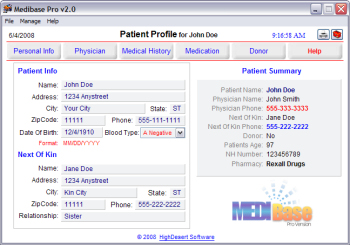
The Patient Profile is
the first screen you see when you enter MediBase Pro. It will show the last
patient profile you accessed.
As you begin entering data, notice that the Patient Summary panel automagically updates. This summary is displayed throughout the program.
When you run the program for the very first time, you will be prompted to create a database. Additional patient databases can be created by clicking on Manage in the top menu. You can also open an existing database, delete the current database, import or export data and backup all the databases from this menu.
The 2
buttons in the upper right corner lets you print a detailed report
and access the Configuration
screen.
The button bar across the top gives access to other data input, and appears on all the program screens. It is recommended that you fill out the information on the Physician, Medical History and Donor screens. Optionally add any medications on the Medication screen.